教程 3:分析和可视化方法
本教程介绍了 CANNs 分析器模块中的可视化和分析方法。
目录
分析器模块和PlotConfigs概述
1D分析方法
不同任务的能量景观
2D分析方法
后续步骤
1. Analyzer 模块和 PlotConfigs 概览
canns.analyzer.plotting 模块为分析模拟结果提供可视化方法。所有绘图函数都使用 PlotConfigs 系统进行统一配置管理。
1.1 可用的绘图方法
1D 模型分析:
energy_landscape_1d_static- 静态能量景观energy_landscape_1d_animation- 动画能量景观raster_plot- 脉冲光栅图average_firing_rate_plot- 随时间的平均放电率tuning_curve- 神经调谐曲线
2D 模型分析:
energy_landscape_2d_static- 2D 静态能量景观energy_landscape_2d_animation- 2D 动画能量景观
1.2 PlotConfigs 系统
PlotConfigs 提供特定方法的配置构建器。每个绘图方法都有相应的配置构建器:
from canns.analyzer.plotting import (
PlotConfigs,
energy_landscape_1d_static,
energy_landscape_1d_animation,
raster_plot,
average_firing_rate_plot,
tuning_curve,
)
# 为每个方法创建配置
config_static = PlotConfigs.energy_landscape_1d_static(
figsize=(10, 6),
title='能量景观',
show=True, # 显示图表(默认)
save_path=None # 不保存到文件(默认)
)
# 将配置与绘图函数结合使用
energy_landscape_1d_static(
data_sets={'r': (model.x, r_history)},
config=config_static
)
注意:这是一个概念示例。实际用法将在下面的第2部分中使用真实数据进行演示。
主要优势:
统一界面: 所有绘图方法遵循相同的模式
配置重用: 一次创建,多次使用
清晰的默认值:
show=True, save_path=None用于交互式可视化
注意: 默认情况下,图表会被显示(
show=True)且不会被保存(save_path=None)。设置save_path='filename.png'来保存图表。
2. 一维分析方法
让我们使用 SmoothTracking1D 任务演示所有一维分析方法。
2.1 准备
[25]:
import brainpy.math as bm
from canns.models.basic import CANN1D
from canns.task.tracking import SmoothTracking1D
from canns.analyzer.plotting import (
PlotConfigs,
energy_landscape_1d_static,
energy_landscape_1d_animation,
raster_plot,
average_firing_rate_plot,
tuning_curve,
)
# 设置环境
bm.set_dt(0.1)
# 创建模型
model = CANN1D(num=256, tau=1.0, k=8.1, a=0.5, A=10, J0=4.0)
# 创建平滑跟踪任务
# 刺激从 -2.0 移动到 2.0,然后移动到 -1.0
task = SmoothTracking1D(
cann_instance=model,
Iext=[-4.0, 4.0, -2.0, 2.0], # 关键点位置
duration=[20.0, 30.0, 20.0], # 每个段的持续时间
time_step=bm.get_dt(),
)
# 获取任务数据
task.get_data()
# 定义模拟步骤
def run_step(t, inp):
model.update(inp)
return model.u.value, model.r.value, model.inp.value
# 运行模拟
u_history, r_history, input_history = bm.for_loop(run_step, operands=(task.run_steps, task.data), progress_bar=10)
<SmoothTracking1D> Generating Task data: 0it [00:00, ?it/s]<SmoothTracking1D> Generating Task data: 700it [00:00, 7853.26it/s]
2.2 能量景观(静态)
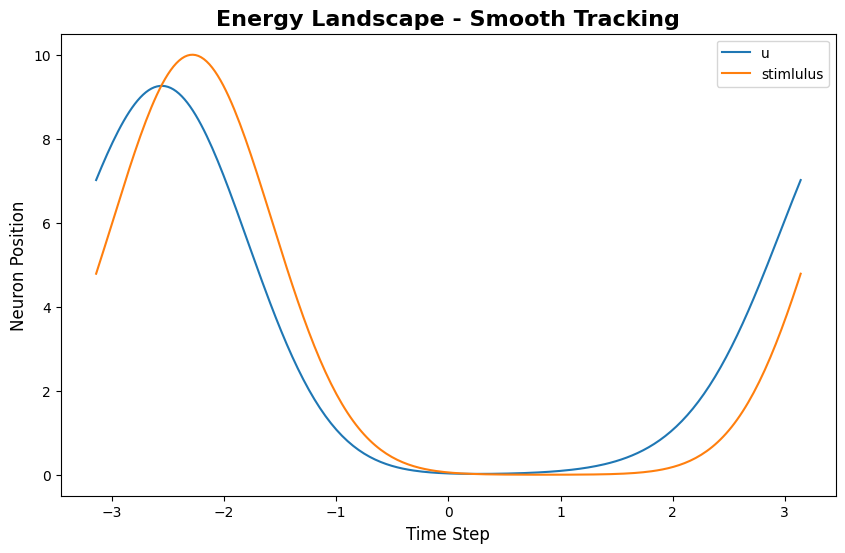
energy_landscape_1d_static 绘制随时间和神经元位置变化的放电率:
[26]:
index = 200 # 要可视化的时间步# 配置静态能量景观config_static = PlotConfigs.energy_landscape_1d_static( figsize=(10, 6), title='Energy Landscape - Smooth Tracking', xlabel='Neuron Position', ylabel='Neuron Position', show=True, save_path=None)# 绘制静态能量景观energy_landscape_1d_static( data_sets={'u': (model.x, u_history[index]), 'stimlulus': (model.x, input_history[index])}, config=config_static)
[26]:
(<Figure size 1000x600 with 1 Axes>,
<Axes: title={'center': 'Energy Landscape - Smooth Tracking'}, xlabel='Time Step', ylabel='Neuron Position'>)
这显示了碰撞轨迹随时间的变化:x轴为时间,y轴为特征空间位置,颜色强度代表放电速率。
2.3 能量景观(动画)
energy_landscape_1d_animation 生成动态动画,展示碰撞的演化过程:
[27]:
# 配置动画config_anim = PlotConfigs.energy_landscape_1d_animation( time_steps_per_second=100, # 100个时间步 = 1秒实时时间 fps=20, # 每秒20帧 title='Energy Landscape Animation', xlabel='Firing Rate', ylabel='Firing Rate', repeat=True, show=True, save_path=None # 设置为 'animation.gif' 可保存动画)# 生成动画energy_landscape_1d_animation( data_sets={'u': (model.x, u_history), 'stimlulus': (model.x, input_history)}, config=config_anim)
该动画展示了每个时间步的群体放电率分布,可视化凸起如何在特征空间中移动。
动画参数:
time_steps_per_second: 每实时秒的模拟时间步数fps: 动画的每秒帧数repeat: 是否循环播放动画
2.4 光栅图
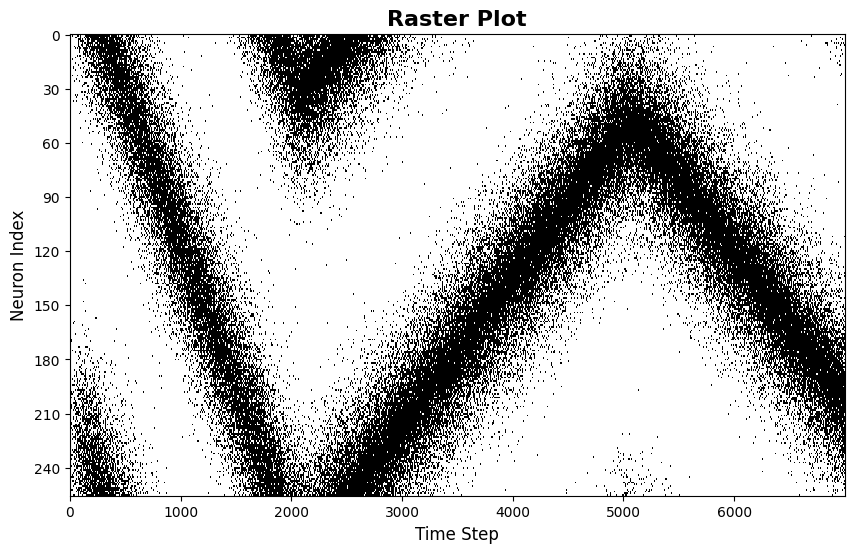
raster_plot 显示神经元的放电时间:
[28]:
from canns.analyzer.utils import firing_rate_to_spike_train# 配置光栅图config_raster = PlotConfigs.raster_plot( figsize=(10, 6), title='Raster Plot', xlabel='Neuron Index', ylabel='Neuron Index', show=True, save_path=None)# 使用 u 生成脉冲序列,因为它具有更高的值spike_train = firing_rate_to_spike_train(u_history, dt_spike=0.01, dt_rate=bm.get_dt())# 绘制光栅图raster_plot( spike_train=spike_train, config=config_raster)
[28]:
(<Figure size 1000x600 with 1 Axes>,
<Axes: title={'center': 'Raster Plot'}, xlabel='Time Step', ylabel='Neuron Index'>)
每个点代表一个神经元在特定时间的放电。该模式揭示了凸起的空间结构和时间演变。
2.5 平均放电率图
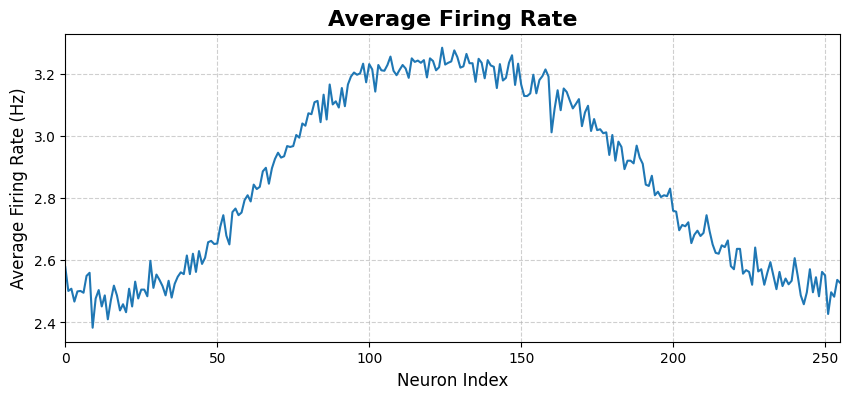
average_firing_rate_plot 显示了种群平均放电率随时间的变化:
[29]:
# 配置平均放电率图config_avg = PlotConfigs.average_firing_rate_plot( figsize=(10, 4), title='Average Firing Rate', xlabel='Average Firing Rate', ylabel='Average Firing Rate', show=True, save_path=None)# 绘制平均放电率average_firing_rate_plot( spike_train=spike_train, dt=bm.get_dt(), config=config_avg)
[29]:
(<Figure size 1000x400 with 1 Axes>,
<Axes: title={'center': 'Average Firing Rate'}, xlabel='Neuron Index', ylabel='Average Firing Rate (Hz)'>)
此图显示了网络在一段时间内的总体活动水平。
2.6 调谐曲线
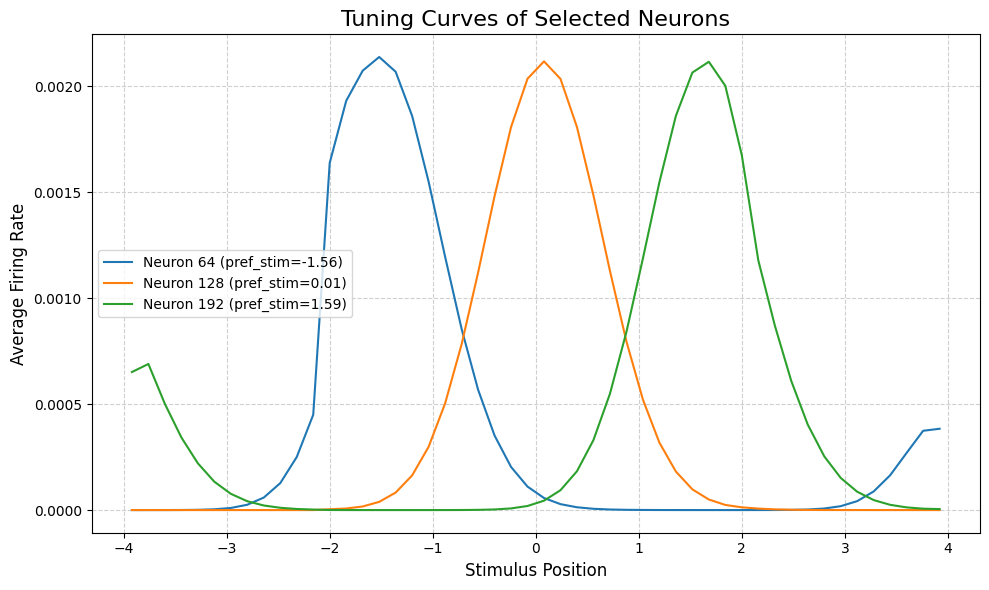
tuning_curve 显示了单个神经元对不同刺激位置的反应:
[30]:
# 配置调谐曲线config_tuning = PlotConfigs.tuning_curve( num_bins=50, # 位置分箱数 pref_stim=model.x, # 每个神经元的优选刺激 title='Tuning Curves of Selected Neurons', xlabel='Average Firing Rate', ylabel='Average Firing Rate', show=True, save_path=None,)# 选择要绘制的神经元neuron_indices = [64, 128, 192] # 左、中、右# 绘制调谐曲线tuning_curve( stimulus=task.Iext_sequence.squeeze(), firing_rates=r_history, neuron_indices=neuron_indices, config=config_tuning)
[30]:
(<Figure size 1000x600 with 1 Axes>,
<Axes: title={'center': 'Tuning Curves of Selected Neurons'}, xlabel='Stimulus Position', ylabel='Average Firing Rate'>)
调谐曲线揭示了每个神经元的”偏好位置”——引发最大响应的刺激位置。对于CANN模型,神经元通常具有以不同位置为中心的钟形调谐曲线。
3. 不同任务的能量景观
不同的任务产生特征性的能量景观模式。让我们比较三个追踪任务:
3.1 PopulationCoding1D
群体编码展示了在短暂刺激呈现后的记忆维持。
[ ]:
<PopulationCoding1D>Generating Task data(No For Loop)
特征模式:凸起在刺激呈现期间(中间部分)形成,并在刺激结束后保持在同一位置(右侧部分)。这演示了吸引子的稳定性和记忆维持能力。
3.2 TemplateMatching1D
模板匹配演示从噪声输入进行模式补全。
[37]:
from canns.task.tracking import TemplateMatching1D# 重新初始化模型model.init_state()# 模板匹配任务task_tm = TemplateMatching1D( cann_instance=model, Iext=1.0, duration=50.0, time_step=bm.get_dt(),)# 获取数据并运行模拟task_tm.get_data()u_tm, r_tm, inp_tm = bm.for_loop(run_step, operands=(task_tm.run_steps, task_tm.data), progress_bar=10)# 可视化config_anim = PlotConfigs.energy_landscape_1d_animation( time_steps_per_second=100, # 100个时间步 = 1秒真实时间 fps=20, # 每秒20帧 title='Energy Landscape Animation - Template Matching', xlabel='Firing Rate', ylabel='Firing Rate', repeat=True, show=True, save_path=None # 设置为 'animation.gif' 以保存)# 生成动画energy_landscape_1d_animation( data_sets={'u': (model.x, u_tm), 'stimlulus': (model.x, inp_tm)}, config=config_anim)
<TemplateMatching1D>Generating Task data: 100%|██████████| 500/500 [00:00<00:00, 8404.61it/s]
特征模式:初始分散的活动(噪声输入产生广泛、微弱的激活)收敛到单个尖锐的峰值。这展示了吸引子通过收敛来”清理”噪声输入的能力。
3.3 SmoothTracking1D
平滑跟踪演示了凹陷跟随移动刺激的情况。
[38]:
from canns.task.tracking import SmoothTracking1D# 重新初始化模型model.init_state()# 平滑追踪任务task_st = SmoothTracking1D( cann_instance=model, Iext=[-2.0, 2.0], duration=[50.0], time_step=bm.get_dt(),)# 获取数据并运行模拟task_st.get_data()u_st, r_st, inp_st = bm.for_loop(run_step, operands=(task_st.run_steps, task_st.data), progress_bar=10)# 可视化config_anim = PlotConfigs.energy_landscape_1d_animation( time_steps_per_second=100, # 100个时间步 = 1秒实时时间 fps=20, # 每秒20帧 title='Energy Landscape Animation - Smooth Tracking', xlabel='Firing Rate', ylabel='Firing Rate', repeat=True, show=True, save_path=None # 设置为'animation.gif'以保存)# 生成动画energy_landscape_1d_animation( data_sets={'u': (model.x, u_st), 'stimlulus': (model.x, inp_st)}, config=config_anim)
<SmoothTracking1D> Generating Task data: 500it [00:00, 7279.28it/s]
特征模式:凸起从左到右平稳移动,跟踪运动刺激。这展示了吸引子在整合外部输入的同时保持稳定凸起结构的能力。
3.4 对比总结
任务 |
输入模式 |
能量景观特征 |
演示 |
|---|---|---|---|
PopulationCoding |
短暂刺激 |
凸起形成并原地保持 |
记忆维持 |
TemplateMatching |
有噪声的连续输入 |
分布式活动 → 尖锐凸起 |
模式补全 |
SmoothTracking |
运动刺激 |
凸起平稳跟踪轨迹 |
刺激跟踪 |
这三种模式说明了连续吸引子网络的三个关键计算能力:记忆、去噪和跟踪。
4. 2D分析方法
对于CANN2D模型,分析器提供相应的2D可视化方法。PlotConfigs模式对2D可视化的工作方式相同。
4.1 准备CANN2D仿真
[39]:
from canns.models.basic import CANN2D
from canns.task.tracking import SmoothTracking2D
from canns.analyzer.plotting import (
PlotConfigs,
energy_landscape_2d_static,
energy_landscape_2d_animation,
plot_firing_field_heatmap,
)
# 创建2D模型
model_2d = CANN2D(
length=32, # 32x32神经元网格
tau=1.0,
k=8.1,
a=0.3,
A=10,
J0=4.0,
)
model_2d.init_state()
# 创建2D跟踪任务
# 从(-1, -1)移动到(1, 1)再到(-1, 1)
task_2d = SmoothTracking2D(
cann_instance=model_2d,
Iext=[(-1.0, -1.0), (1.0, 1.0), (-1.0, 1.0)],
duration=[30.0, 30.0],
time_step=0.1,
)
# 获取数据并运行模拟
task_2d.get_data()
def run_step_2d(t, inp):
model_2d.update(inp)
return model_2d.u.value, model_2d.r.value
u_history_2d, r_history_2d = bm.for_loop(run_step_2d, operands=(task_2d.run_steps, task_2d.data), progress_bar=10)
<SmoothTracking2D> Generating Task data: 600it [00:00, 745.20it/s]
4.2 能量景观 2D(静态)
[42]:
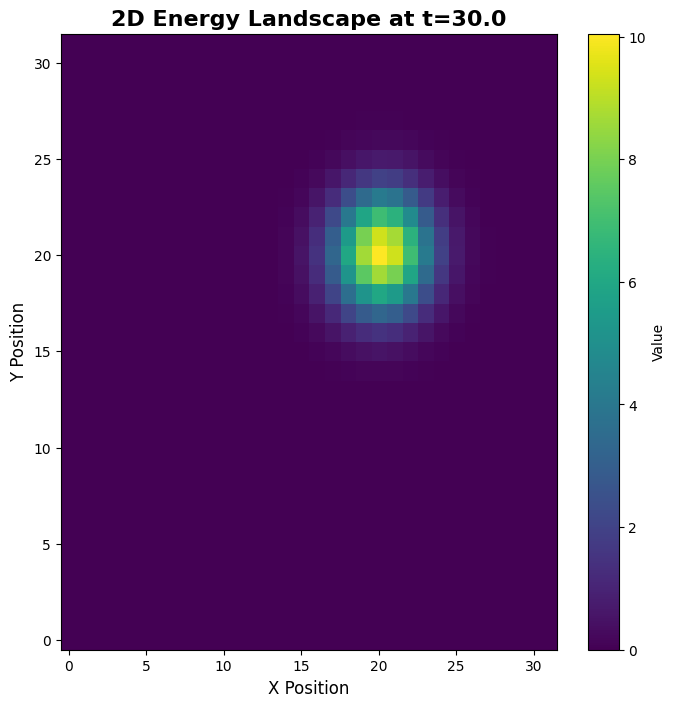
# 选择一个时间点进行可视化time_idx = 300# 配置2D静态景观config_2d_static = PlotConfigs.energy_landscape_2d_static( figsize=(8, 8), title=f'2D能量景观 at t={time_idx * 0.1:.1f}', xlabel='X Position', ylabel='Y Position', show=True, save_path=None)# 绘制特定时间点的2D能量景观energy_landscape_2d_static( z_data=u_history_2d[time_idx], config=config_2d_static)
[42]:
(<Figure size 800x800 with 2 Axes>,
<Axes: title={'center': '2D Energy Landscape at t=30.0'}, xlabel='X Position', ylabel='Y Position'>)
二维静态图显示了单个时间点的发放率空间分布,揭示了二维凸起结构。
4.3 能量景观二维(动画)
[43]:
# 配置2D动画config_2d_anim = PlotConfigs.energy_landscape_2d_animation( time_steps_per_second=100, fps=20, figsize=(8, 8), title='2D Energy Landscape Animation', xlabel='Y Position', ylabel='Y Position', repeat=True, show=True, save_path=None # 设置为 'animation_2d.gif' 以保存)# 生成2D能量景观动画energy_landscape_2d_animation( zs_data=u_history_2d, config=config_2d_anim)
二维动画展示了凸起在二维特征空间中移动,遵循任务定义的轨迹。
5. 后续步骤
恭喜您完成教程3!您现在了解了:
如何使用PlotConfigs进行统一的可视化配置
CANNs中所有主要的1D和2D可视化方法
不同任务如何产生特征性的能量景观模式
三个关键计算能力:记忆、去噪和跟踪
继续学习
下一步: 教程4:参数效应 - 探索参数如何系统地影响模型行为
高级应用: 继续教程5-7了解分层模型和脑启发网络
实验数据: 查看场景2:数据分析教程
关键要点
PlotConfigs模式: 始终使用
PlotConfigs.method_name()创建配置,然后传递给绘图函数默认行为: 绘图默认显示 (
show=True, save_path=None)数据集: 所有绘图函数接受
data_sets字典以实现灵活的数据输入任务模式: 不同任务揭示不同的吸引子属性(稳定性、收敛性、跟踪)